| |
| |
| |
How to secure your passwords with keepass |
| |
| |
What is KeePass |
| |
| KeePass is a free and free password manager. It allows you to create an encrypted database in order |
| to store a set of passwords in a secure way. The database is in the form of a .kdbx file which |
| can only be opened via the KeePass software if you enter a master password. The user therefore |
| only has one password to know to access all these other passwords. |
|
|
| KeePass uses AES (Advanced Encryption Standard) encryption by default. |
| This is a robust and reliable standard in the world of data encryption, it is also the encryption |
| system used by the US government |
| |
Create a database with KeePass |
| |
| |
Step 1 |
| Launch the KeePAss software. |
| |
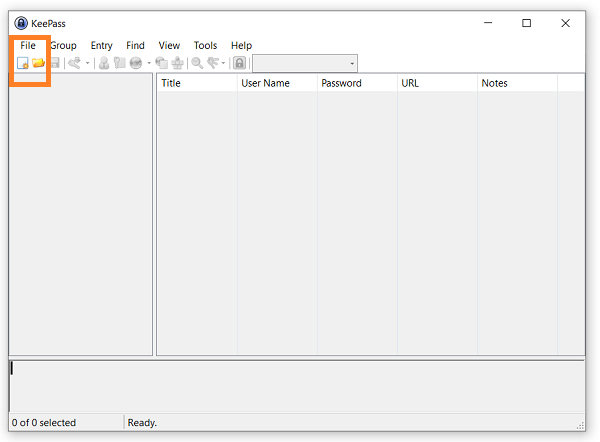 |
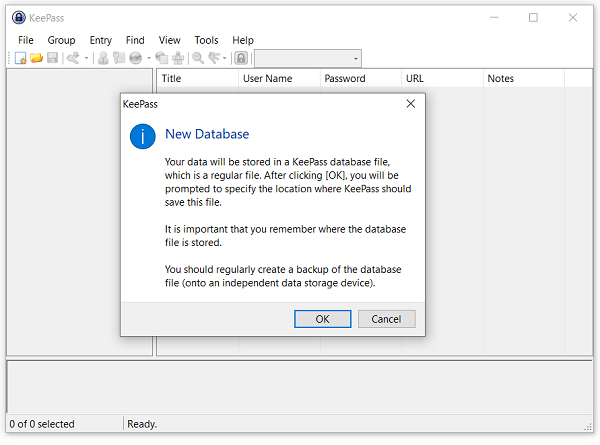
| | | Click on the File menu and choose the New option. The message that appears tells you that |
| you are going to create a file to store the database and recommends that you clearly identify |
| where you save this file and also think about making backup copies. Validate with the OK button. |
| |
 |
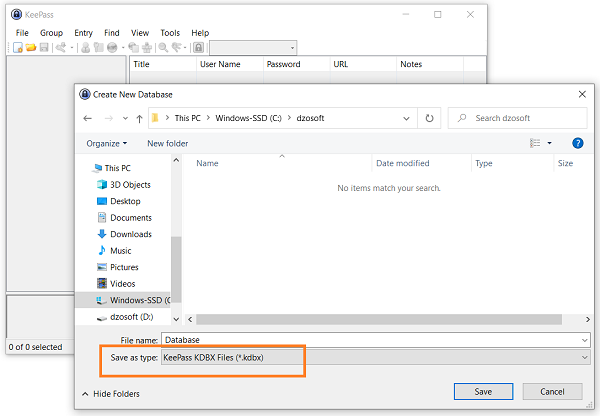
| | | Navigate in the next window to determine where you want to create your database then enter the name of the file |
| in the corresponding field. Be sure to keep the .kdbx extension at the end of your file name. |
| |
 |
| | | |
 |
| | |
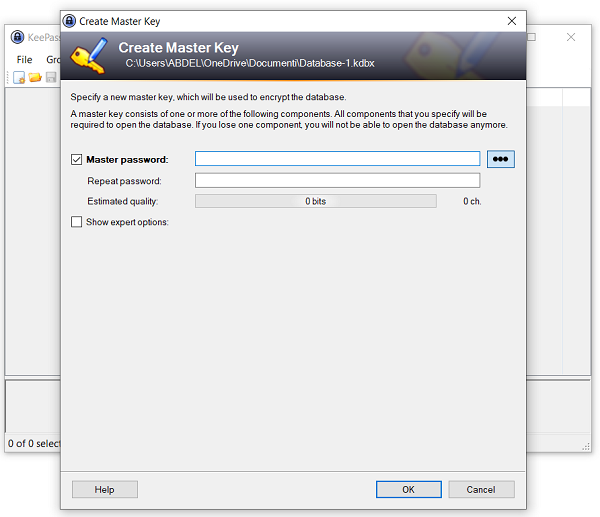
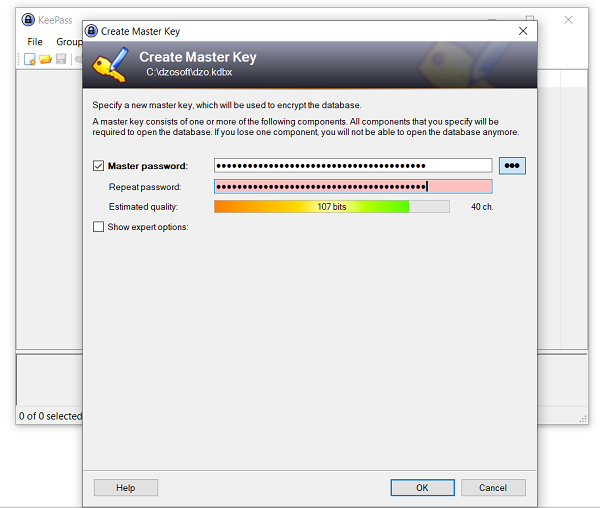
| Choose your master password by entering it twice and making sure it is secure. |
| |
 |
| | | |
 |
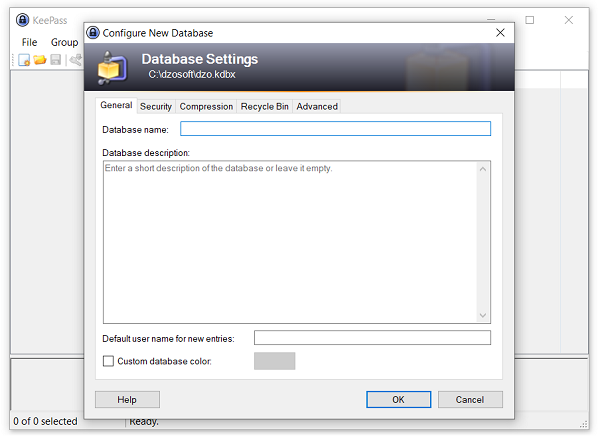
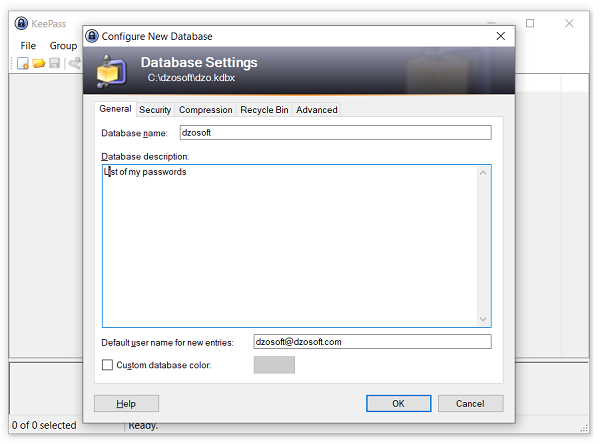
| | | Enter a name for your database (Database name). You can also enter a description (Database description) and |
| default user name (Default user name for new entries). The default user name will be offered systematically |
| when you register a new password, so I recommend that you enter your email address. |
| |
 |
| | | |
 |
| | | You can, if you wish, go through the options using the different tabs. |
|
| |
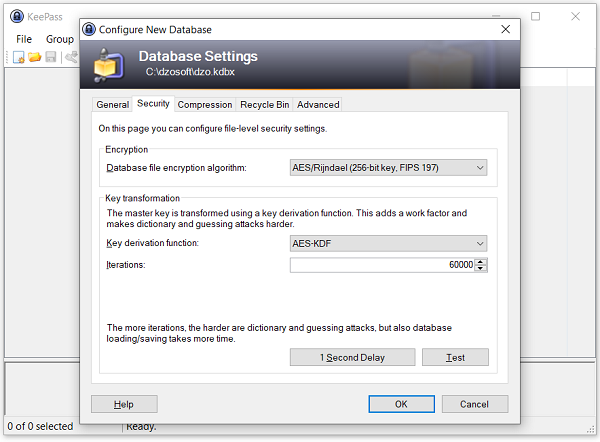
Tab Security |
| This tab gives you access to the choice of the encryption algorithm of your database. It also provides access to key |
| transformation settings. When you enter your password to open your database, it will be transformed a certain number of times. |
| The higher the number of transformations, the longer the processing time. A long processing time will greatly increase |
| the brute force password cracking time. To give an example, if the processing time lasts 0.01s, it will be possible to test |
| 000 passwords in 10s. If the processing time is 1s, it will only be possible to test 10. |
| This processing time will apply to each loading and modification of your database. It is therefore a question of finding a |
| reasonable compromise between comfort of use and safety. |
| |
 |
| | | |
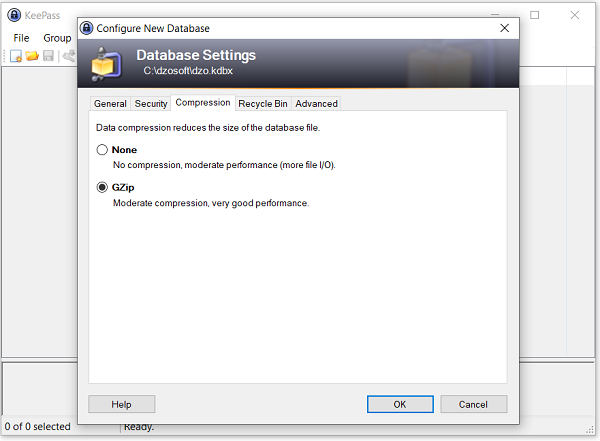
Tab Compression |
| This tab gives access to a single option concerning data compression. This is enabled by default. |
| You will have relatively light files anyway whether they are compressed or not. A database containing a hundred |
| passwords will weigh less than 50Kb. |
| |
 |
| | | |
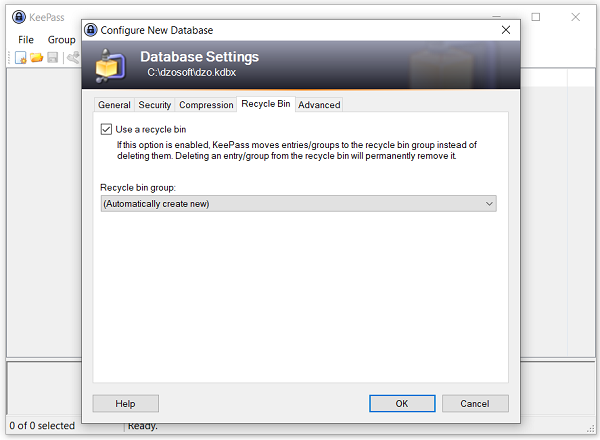
Tab Recyble Bin |
| This tab allows you to activate a recycle bin when deleting entries from your database. |
| |
 |
| | | |
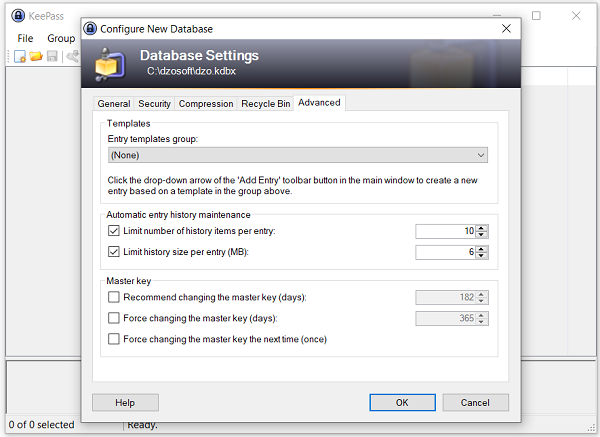
Tab Advanced |
| This last tab mainly allows you to strengthen the security of your database by forcing you to change the master password |
| at regular intervals. |
| |
 |
| | | After validating your different options, click on the OK button to display the following message. KeePass then offers |
| you to print a summary sheet on which you will find the KeePass instructions and on which you can write your master password |
| if you are afraid of losing it. |
| |
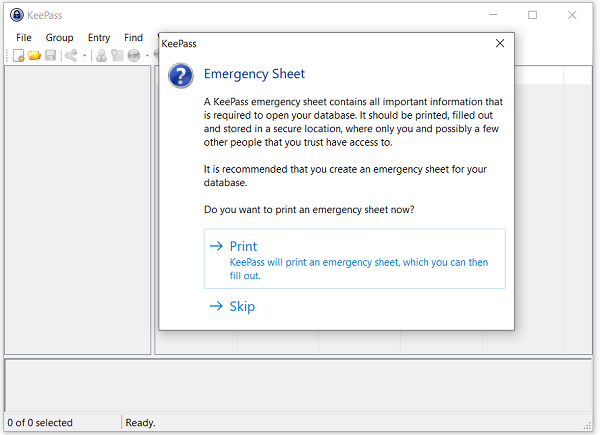 |
| | | You can skip this step by clicking Skip. |
| The database is created. KeePass has added categories and sample passwords that you can remove. |
| |
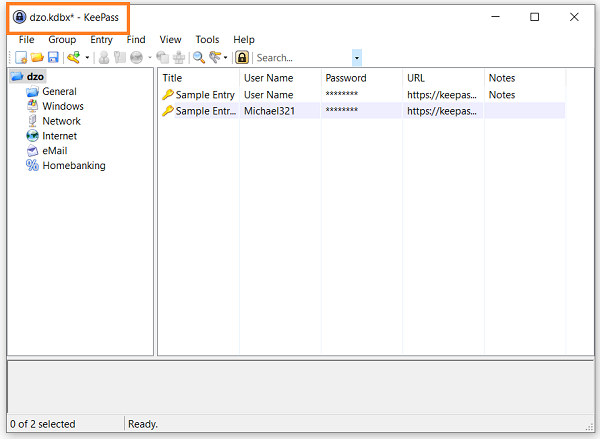 |
| | | Noe you need to save the database because not yet saved |
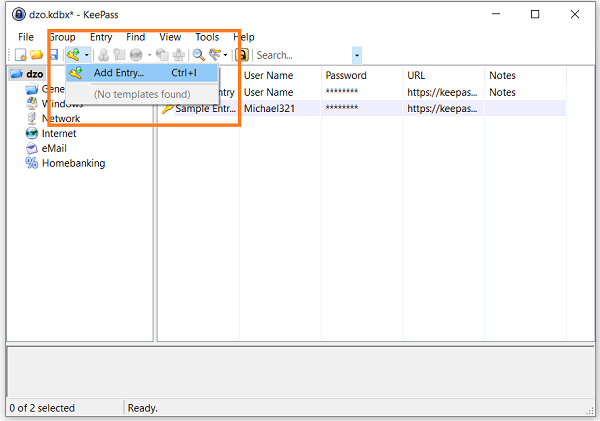
| To add a new entry, simply click on the icon button add an entry or go to the menu Entry then Add an entry |
| |
 |
| |
 FR
FR 
 English - EN
  Español - ES